

Description
Download RarMe – Free GUI for RAR on macOS
RarMe is a lightweight AppleScript Studio application that adds a graphical user interface (GUI) to the powerful command‑line RAR archiver for macOS. While the original RAR tool is renowned for its compression efficiency and robust encryption, its lack of a native Mac GUI makes it intimidating for users who prefer point‑and‑click interactions. RarMe bridges that gap by wrapping the RAR executable in an easy‑to‑use window, allowing you to create, test, and extract RAR archives without typing a single command. The app does not ship the RAR binary itself – you must install the official RAR command‑line tool first, respecting the developer’s licensing terms. Though still a work‑in‑progress and missing some advanced RAR options, RarMe dramatically reduces the learning curve for casual and power users alike. This review walks through the core features, the step‑by‑step installation process, system compatibility, and the practical pros and cons you’ll encounter when using RarMe on a Mac. Whether you’re a graphic designer needing to send large portfolios, a developer packaging deployment bundles, or simply a home user looking for a reliable compression tool, RarMe offers a free, secure, and straightforward solution to bring RAR’s capabilities into the macOS desktop environment.
Key Features of RarMe
- Intuitive Drag‑and‑Drop Interface – Add files or folders directly into the main window to create a RAR archive with a single click.
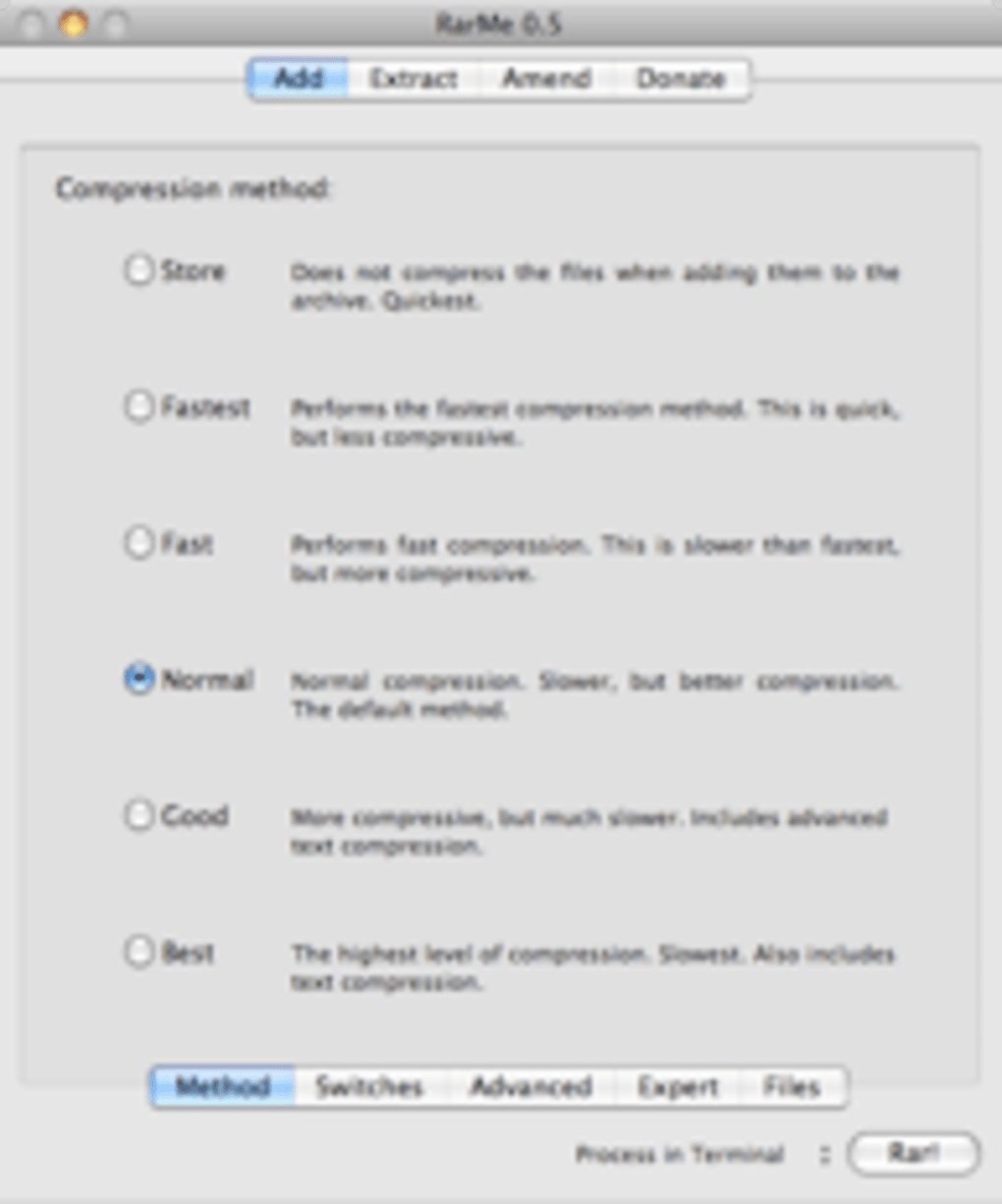
- One‑Click Compression – Choose compression level (Fast, Normal, Best) from a dropdown and let RarMe handle the command‑line parameters behind the scenes.
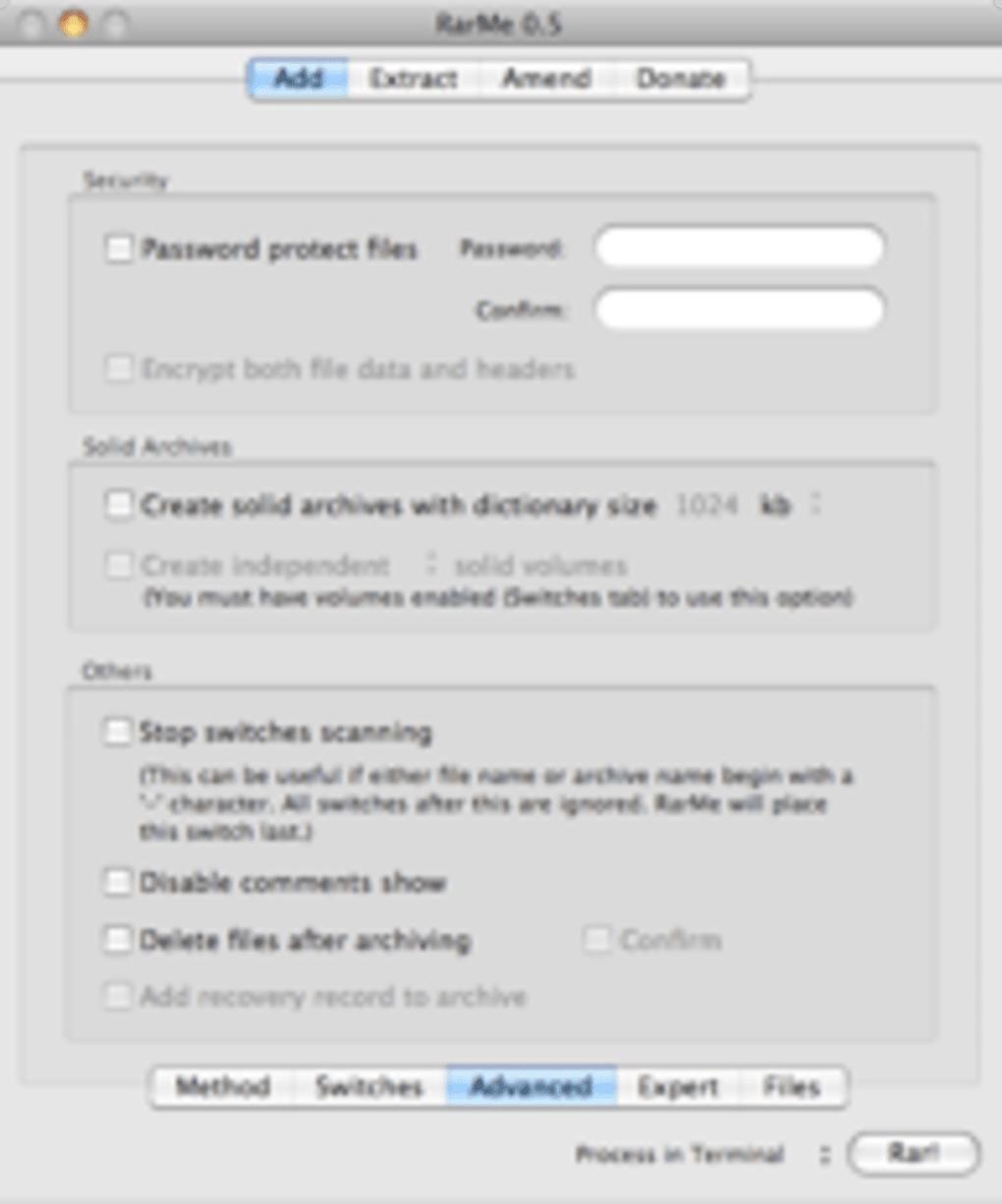
- Password Protection – Apply AES‑256 encryption to your archives by entering a password in the security tab.
- Archive Verification – After compression, RarMe can automatically run a test to ensure the archive is error‑free.
- Batch Processing – Select multiple files or folders and compress them into separate archives in a single operation.
- Integration with Finder – Right‑click any file or folder in Finder and choose “Compress with RarMe” for quick access.
- Progress Bar and Log Window – Visual feedback on compression progress and a scrollable log showing the exact RAR commands executed.
- Free and Open Source – No hidden fees; the application is distributed under an MIT‑style license, encouraging community contributions.
Step‑by‑Step Installation & Usage Guide
Before you can launch RarMe, you must first install the official RAR command‑line utility from the RARLAB website. Download the appropriate rarosx archive, extract it, and locate the UNIX executable named rar. Copy this executable into a permanent location, such as /usr/local/bin, and ensure it has execute permissions (run chmod +x /usr/local/bin/rar in Terminal). Once the RAR binary is ready, proceed with RarMe’s installation:
- Download the RarMe zip file from the project’s GitHub releases page.
- Unzip the archive and drag the
RarMe.appbundle into your/Applicationsfolder. - Right‑click
RarMe.appand select “Show Package Contents”. - Navigate to
Contents/Resourcesand drag the previously installedrarexecutable into this folder. - Close the package window and double‑click
RarMe.appto launch the GUI.
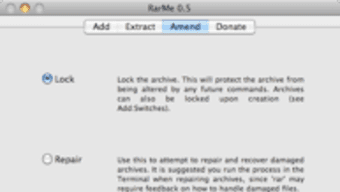
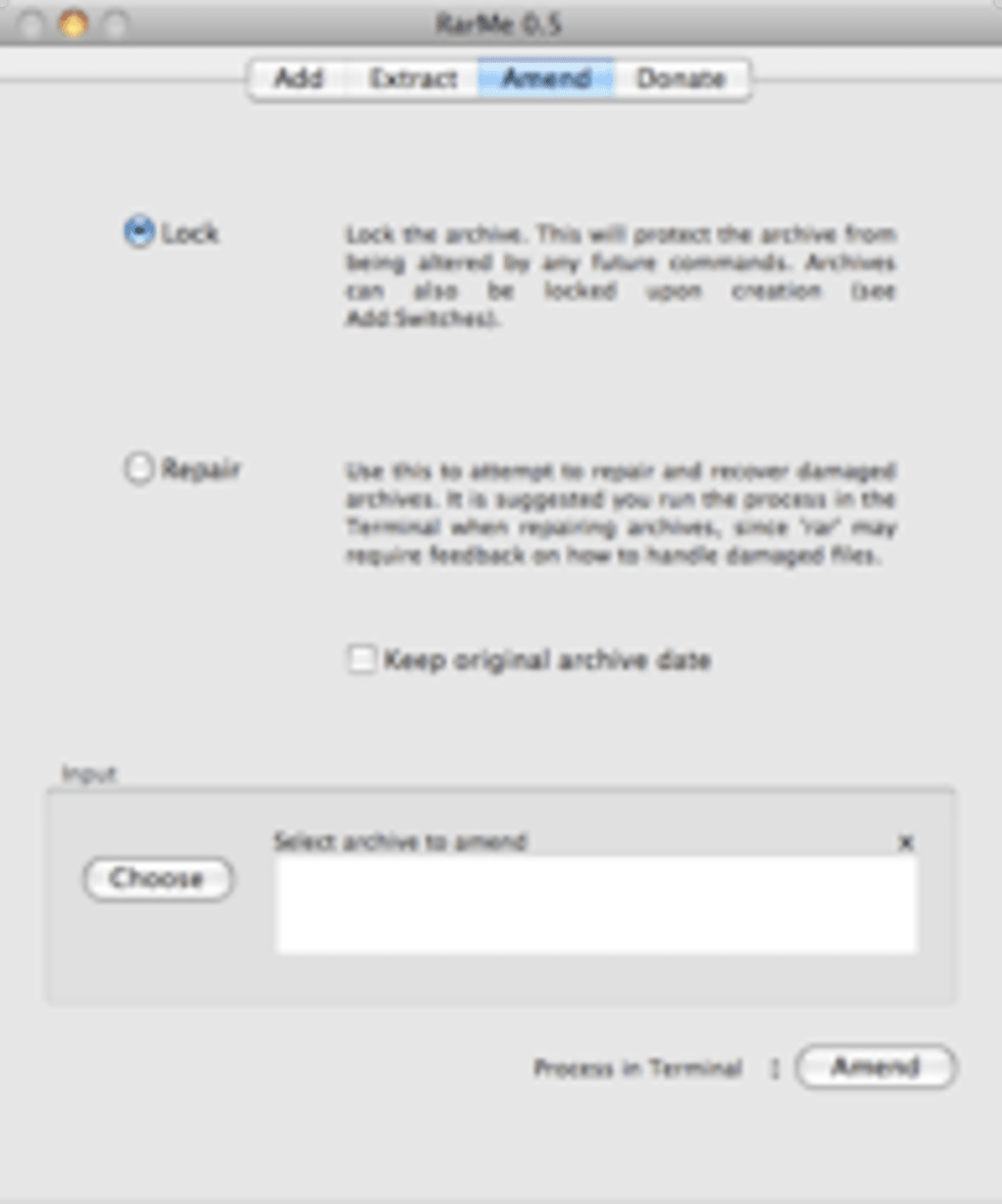
When the interface opens, you’ll see a clean window with three main tabs: Compress, Extract, and Settings. To create an archive, simply drag files into the “Compress” area, choose a destination folder, set a password if desired, and click “Create RAR”. The app will call the underlying RAR binary, display a progress bar, and then notify you once the process finishes. Extraction works in reverse: drop a RAR file onto the “Extract” tab, specify the target directory, and press “Extract”. If the archive is password‑protected, you’ll be prompted to enter the password. Although error handling is still being refined, most common issues (such as missing files) generate clear dialog boxes, helping you troubleshoot without digging into Terminal logs.
Compatibility, Pros & Cons
RarMe is built specifically for macOS 10.12 (Sierra) and later. Because it relies on the native AppleScript Studio framework, the application runs natively on Intel‑based Macs as well as Apple Silicon (M1/M2) machines, thanks to Rosetta 2 translation where needed. The tool does not support Windows, Linux, Android, or iOS – its sole focus is to bring a GUI to the macOS RAR experience. Users must keep both the RAR command‑line utility and RarMe up to date; the developer releases occasional patches to address compatibility with newer macOS releases.
Pros
- Provides a free, graphical alternative to the command‑line RAR tool.
- Simple drag‑and‑drop workflow reduces the learning curve for beginners.
- Supports strong AES‑256 encryption for secure archives.
- Integrates with Finder for quick right‑click actions.
- Lightweight footprint – the app itself is under 5 MB.
- Open‑source nature encourages community improvements and transparency.
Cons
- Requires manual installation of the RAR executable, which can be confusing for non‑technical users.
- Not all RAR command‑line options are exposed (e.g., solid archives, recovery records).
- Error handling is still rudimentary; occasional “unknown error” dialogs appear.
- No built‑in update mechanism – users must monitor the GitHub page for new releases.
- Lacks multi‑language support; the interface is English‑only.
Frequently Asked Questions (FAQ) & Conclusion
Do I need to purchase RAR to use RarMe?
No. RarMe itself is free, but you must download the official RAR command‑line tool from RARLAB, which is distributed under a shareware license. You can use the trial version without paying, though a license is required for long‑term use.
Can RarMe create password‑protected archives?
Yes. In the “Compress” tab you can enter a password, and RarMe will invoke RAR with the -hp flag to apply AES‑256 encryption to the entire archive.
Is RarMe compatible with Apple Silicon Macs?
Absolutely. The AppleScript Studio bundle runs natively on both Intel and Apple Silicon Macs. If you place an Intel‑only RAR binary, macOS will use Rosetta 2 to translate it automatically.
What happens if RarMe encounters an error during compression?
RarMe displays a dialog with the error message returned by the RAR executable. Common issues include missing files, insufficient permissions, or an outdated RAR binary. The log window shows the exact command line used, which can help you troubleshoot manually.
How can I keep RarMe up to date?
Because RarMe does not have an automatic updater, you need to visit the project’s GitHub releases page periodically, download the latest zip, and replace the existing RarMe.app bundle. The RAR command‑line tool should also be updated from the official RARLAB site when new versions appear.
In summary, RarMe fills a genuine niche for macOS users who need the power of RAR without the intimidation of a terminal. While the installation steps require a modest amount of technical comfort and the feature set is still growing, the core functionality—drag‑and‑drop compression, password protection, and basic verification—works reliably. If you already own a RAR license or are comfortable using the trial version, installing RarMe will make archive management far more approachable. Give it a try today: download the free RarMe GUI, pair it with the official RAR binary, and enjoy secure, high‑compression archives right from your Mac desktop.
Guides & Tutorials for RarMe
How to install RarMe
- Click the Preview / Download button above.
- Once redirected, accept the terms and click Install.
- Wait for the RarMe download to finish on your device.
How to use RarMe
This software is primarily used for its core features described above. Open the app after installation to explore its capabilities.
User Reviews for RarMe 0
No reviews found





.webp)